Guide to OpenLiteSpeed's uWSGI Setup
In OpenLiteSpeed v1.9 uWSGI native support is introduced. uWSGI is a high performance replacement for WSGI predominantly for Python. It is not intended to be a replacement for the wsgi-lsapi Python support currently available. With careful tuning it can run at comparable performance to wsgi-lsapi but is at its best when running existing applications that may use uWSGI.
uWSGI can improve compatibility with application servers that only use or are optimized for the uwsgi protocol (like the uwsgi program).
Initial Setup
You will need to install the Python development environment as well as uWSGI and the uWSGI Python 3 PlugIn:
yum install python3-devel
yum install python3-pip
yum install uwsgi
yum install uwsgi-plugin-python3
apt install build-essential
apt-get install python3-dev
apt-get install uwsgi
apt-get install uwsgi-plugin-python3
Configuring OpenLiteSpeed
External App
To begin configuration for your uWSGI application, log in to the OpenLiteSpeed WebAdmin Console and navigate to External App for overall configuration, or if you wanted to configure a Virtual Host named Example2, navigate to Virtual Hosts > Example2 > External App.

Press the Add icon.

You will be prompted for the Type, select uWSGI App and press the Next icon. This will bring you to the screen to enter uWSGI parameters.
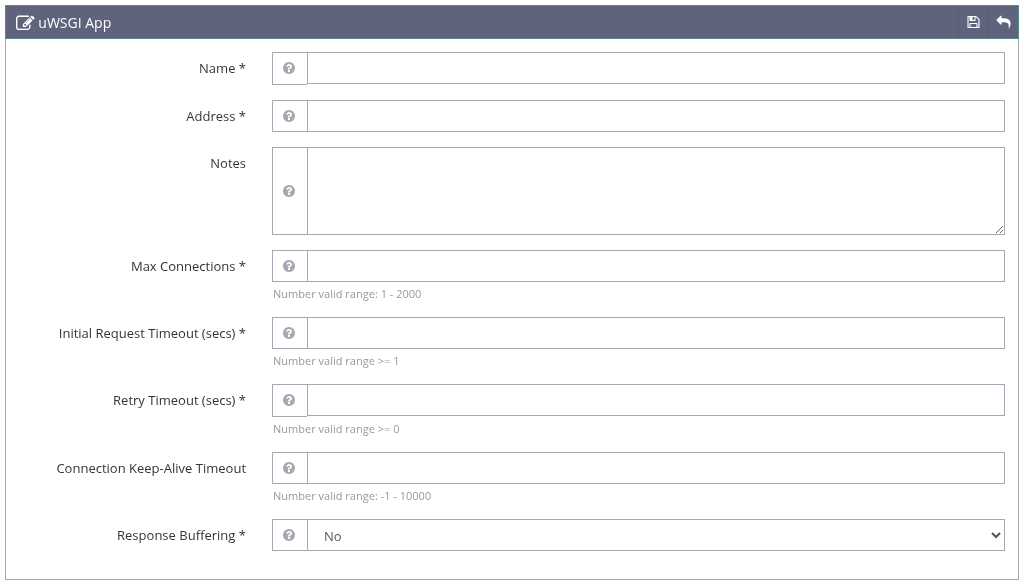
- Name: Enter a name to help you remember this App. You will need it below when you specify the Script Handler.
- Address: A unique socket address used by the external application. IPv4/IPv6 sockets and Unix Domain Sockets (UDS) are supported. IPv4/IPv6 sockets can be used for communication over the network. UDS can only be used when the external application resides on the same machine as the server. Syntax: IPv4 or IPV6
address:portorUDS://path
Examples
127.0.0.1:5434UDS://home/www-data/html/example.sock
Tip
If the external application runs on the same machine, UDS is preferred. If you have to use an IPv4|IPV6 socket, set the IP address to localhost or 127.0.0.1, so the external application is inaccessible from other machines. Unix Domain Sockets generally provide higher performance than IPv4 sockets. Note that UDS sockets require either ownership or permission from applications and are created by the uwsgi application. The UDS value in the example matches the example below for uwsgi.
- Max Connections: Specifies the maximum number of concurrent connections that can be established between the server and an external application. This setting controls how many requests can be processed concurrently by an external application, however, the real limit also depends on the external application itself. Setting this value higher will not help if the external application is not fast enough or cannot scale to a large number of concurrent requests.
- Initial Request Timeout: Specifies the maximum time in seconds the server will wait for the external application to respond to the first request over a new established connection. If the server does not receive any data from the external application within this timeout limit, it will mark this connection as bad. This helps to identify communication problems with external applications as quickly as possible. If some requests take longer to process, increase this limit to avoid 503 error messages.
- Retry Timeout (secs): Specifies the period of time that the server waits before retrying an external application that had a prior communication problem.
- Connection Keep-Alive Timeout: Specifies the maximum time in seconds to keep an idle persistent connection open. When set to
-1, the connection will never time out. When set to0or greater, the connection will be closed after this time in seconds has passed. - Response Buffering: Specifies whether to buffer responses received from external applications. If a "nph-" (Non-Parsed-Header) script is detected, buffering is turned off for responses with full HTTP headers.
Press the Save icon on the top bar to save your definition and return to the External App high level tab.
Context
The example for Python (WSGI) shows a context definition so that when you enter a specific URL you are brought to a specific web page.
Navigate to Web Admin > Virtual Hosts > Context > Add, and set the following values:
- Type =
uwsgi - URI =
/ - Handler = The external app name you created above.
The name of your application and other information is determined in the uWSGI program (uwsgi in our example).
Perform a Graceful Restart to activate your modifications.
Script Handler
As an alternative or complement to a context you can set up a script handler which will handle all files with a given extension (like .uwsgi, .wsgi or .py) through uWSGI processing.
To specify the extension, press the Script Handler tab. Here again you press the Add icon in the top bar to specify a new script.
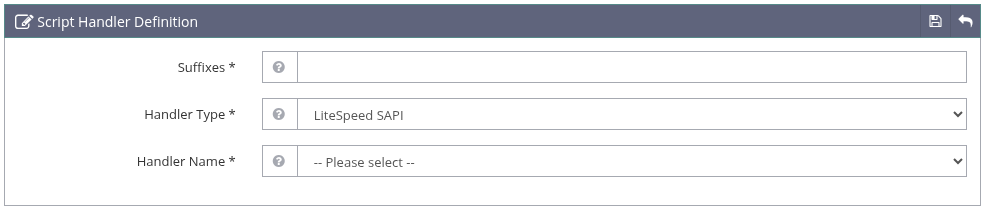
- Suffixes: Specifies the script file suffixes that will be handled by this script handler. Suffixes must be unique. uWSGI applications may use suffixes like
uwsgi,wsgiorpy. Note you can't enter a leading dot. - Handler Type: Select
uWSGIfrom the pulldown. - Handler Name: Select the External App you created above for uWSGI.
Configuring the uWSGI Application
Most uWSGI users will be using the uwsgi program so the desciption will focus on that.
For most applications, you will need a separate instance of the uwsgi program running to service requests. This example will include a systemd service definition for uwsgi.
Creating a .ini file
uwsgi can be controlled with command line parameters and/or .ini files. In this example a command line parameter will specify the name of the .ini file to use, which will be named example.ini
Use a standard text editor to create this file. For this example:
- A virtual environment is created in the user's home directory of
/home/www-datanamedvenv - The application is
example.py - The user's program is stored in
/home/www-data/html
It is recommended that the file be stored in the directory where the application resides and is owned by the application's user.
[uwsgi]
plugin = python3
socket = /home/www-data/html/example.sock
chmod-socket = 666
chdir = /home/www-data/html
wsgi-file =  example.py
uid = www-data
gid = www-data
virtualenv = /home/www-data/venv
disable-logging = True
processes = 4
These are a few of many uWSGI options:
- [uwsgi]: A header required to indicate subsequent parameters are for uswgi.
- plugin: This is the
python3plugin - socket: This needs to match the value specified in the LiteSpeed Configuration Address
- chmod-socket: The UNIX mode for the UDS socket created by uwsgi. LiteSpeed runs as the user
nobodyin most cases so it needs world readable and world writable permission. - wsgi-file: The program to be executed. In this case
example.py - uid: The user name of the user for the program to be run as.
- gid: The group name of the group for the program to be run as.
- virtualenv: The fully qualified path to the virtual environment for this python application.
- disable-logging: When set to
Truereduces the number extra events written to the system log, as this example runs as a service and messages are written there. - processes: A tuning parameter, one that appears to work well in many cases. You may need to adjust this along with other uwsgi turning parameters for optimial performance.
Creating a uwsgi Service
You will need to run uwsgi as a service to be available to service LiteSpeed, which also runs as a service. Run your text editor as root, editing a file in /etc/systemd/system. For example to create a new service named example.service using the vi editor:
sudo vi /etc/systemd/system/example.service
Your file can look similar to this:
[Unit]
Description=Example uwsgi service
After=network-online.target remote-fs.target nss-lookup.target
Wants=network-online.target

[Service]
Type=simple
ExecStart=/usr/bin/uwsgi /home/www-data/html/example.ini
User=www-data
In the [Unit] section you enter:
- Description: A description to help you remember the purpose of this service
- After: Waits for the same set of services that LiteSpeed uses.
- Wants: Requires the same set of services that LiteSpeed requires
In the [Services] section:
- Type:
simpleThis is a program that does not terminate on its own which makes it a simple service. - ExecStart: The fully qualified file name of the program and parameters. There is just a single parameter which is the ini file created above.
- User: The user this service runs as.
Once you have created or modified the service tell systemd to reload the service definitions:
systemctl daemon-reload
Then you can start the service:
systemctl start example
You can then see if the service is running:
systemctl status example
You would expect to see something like this:
● example.service - Example uwsgi service
     Loaded: loaded (/etc/systemd/system/example.service; static)
     Active: active (running) since Wed 2025-12-24 17:45:40 CET; 2min 1s ago
   Main PID: 142965 (uwsgi)
      Tasks: 4 (limit: 4602)
     Memory: 25.8M (peak: 26.2M)
        CPU: 236ms
     CGroup: /system.slice/example.service
             ├─142965 /usr/bin/uwsgi /home/www-data/html/example.ini
             ├─142966 /usr/bin/uwsgi /home/www-data/html/example.ini
             ├─142967 /usr/bin/uwsgi /home/www-data/html/example.ini
             └─142968 /usr/bin/uwsgi /home/www-data/html/example.ini

Dec 24 17:45:40 v220251144927402547 uwsgi[142965]: your server socket listen backlog is limited to 100 connections
Dec 24 17:45:40 v220251144927402547 uwsgi[142965]: your mercy for graceful operations on workers is 60 seconds
Dec 24 17:45:40 v220251144927402547 uwsgi[142965]: mapped 291680 bytes (284 KB) for 4 cores
Dec 24 17:45:40 v220251144927402547 uwsgi[142965]: *** Operational MODE: preforking ***
Dec 24 17:45:40 v220251144927402547 uwsgi[142965]: WSGI app 0 (mountpoint='') ready in 0 seconds on interpreter 0x746244aa3668 pid: 142965 (default app)
Dec 24 17:45:40 v220251144927402547 uwsgi[142965]: *** uWSGI is running in multiple interpreter mode ***
Dec 24 17:45:40 v220251144927402547 uwsgi[142965]: spawned uWSGI worker 1 (pid: 142965, cores: 1)
Dec 24 17:45:40 v220251144927402547 uwsgi[142965]: spawned uWSGI worker 2 (pid: 142966, cores: 1)
Dec 24 17:45:40 v220251144927402547 uwsgi[142965]: spawned uWSGI worker 3 (pid: 142967, cores: 1)
Dec 24 17:45:40 v220251144927402547 uwsgi[142965]: spawned uWSGI worker 4 (pid: 142968, cores: 1)
Testing and Debugging
In the example above you use curl or a browser to access the root of the IP address. For example, in a browser listening on the localhost address on port 80, you would enter the URL of http://localhost/.
Since the uwsgi program is created as a service, you can see the messages written to its output in the system log, usually accessed with journalctl
Most other messages are written to the LiteSpeed error log.